.webp&w=1920&q=75)
Welcome to the second lesson of Building a Flappy Bird Clone. Now that our bird can flap, we need to give the illusion of forward movement. Instead of actually moving the bird along the X-axis, we will keep the bird horizontally stationary and scroll the environment backward.
To achieve this efficiently, we will build an infinite scrolling background using a custom Godot 4 shader.
1. Setting Up the Main Scene#
Let's create the central scene that will hold our game elements.
- Create a new scene with a Node2D as the root and name it
Main. - Add a ColorRect node as a child and name it
Background. - In the Inspector, set the
ColorRect's Size to match our viewport dimensions:x: 480, y: 854.
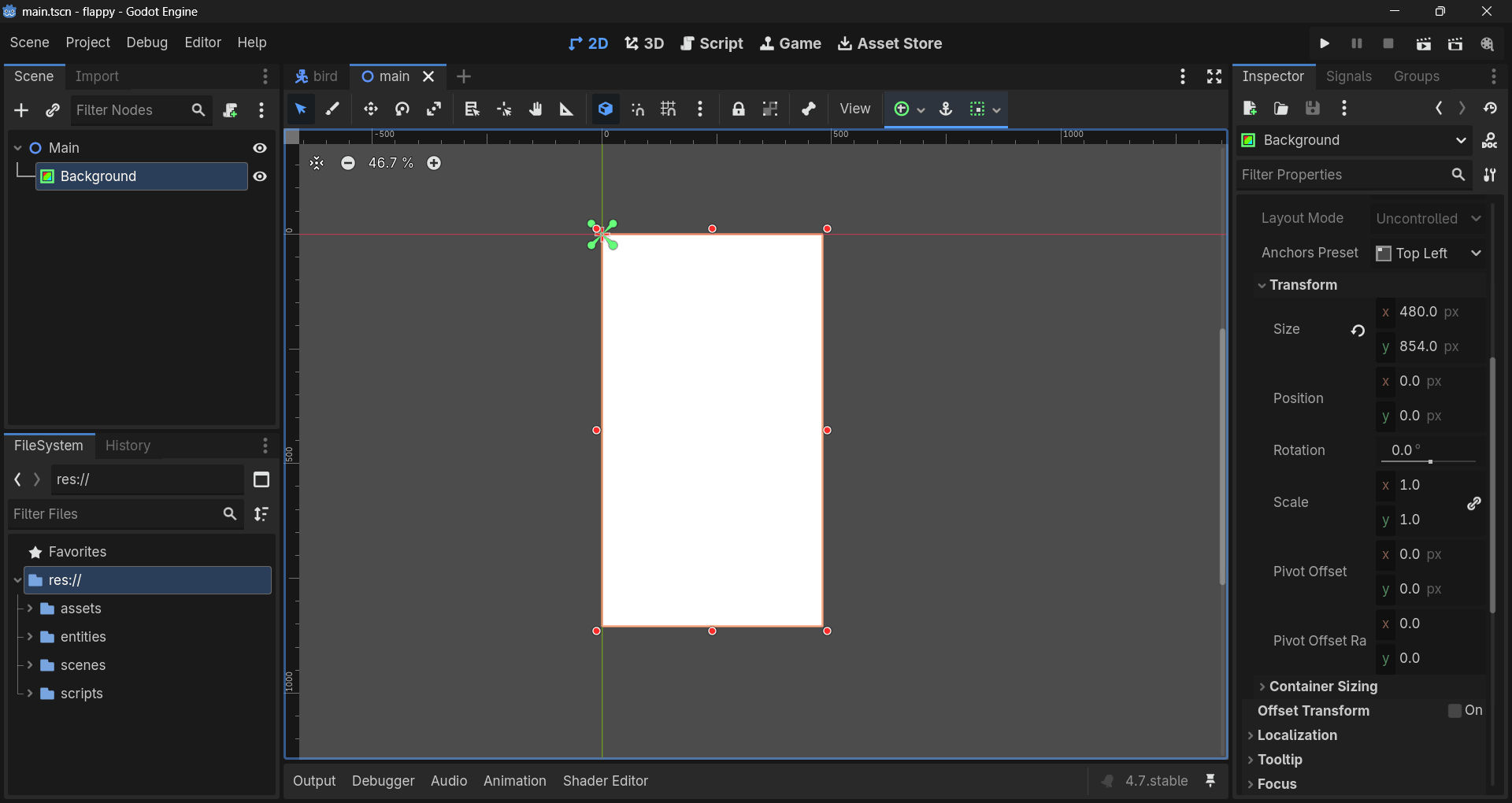
Design Choice: When implementing screen-spanning shader effects like this, utilizing a ColorRect instead of a Sprite2D is highly recommended. It guarantees we cover the exact pixel dimensions of the viewport without fighting texture scaling artifacts or offset issues.
2. Writing the Scrolling Shader#
With our ColorRect in place, we need to write a small program that runs on the GPU to infinitely pan a texture.
- Select the
Backgroundnode. - In the Inspector, under CanvasItem > Material, create a new
ShaderMaterial. - Click the new material, and create a new
Shaderinside it. - Open the Shader Editor and input the following Godot 4 shading language code:
shader_type canvas_item;

// A global modifier so we can stop the background when the player crashes
global uniform float game_speed_multiplier = 1.0;

uniform sampler2D bg_texture : repeat_enable;
uniform float scroll_speed = 0.1;

void fragment() {
	vec2 shifted_uv = UV;

	// Shift the X coordinate over time to pan left
	shifted_uv.x += TIME * scroll_speed * game_speed_multiplier;

	COLOR = texture(bg_texture, shifted_uv);
}
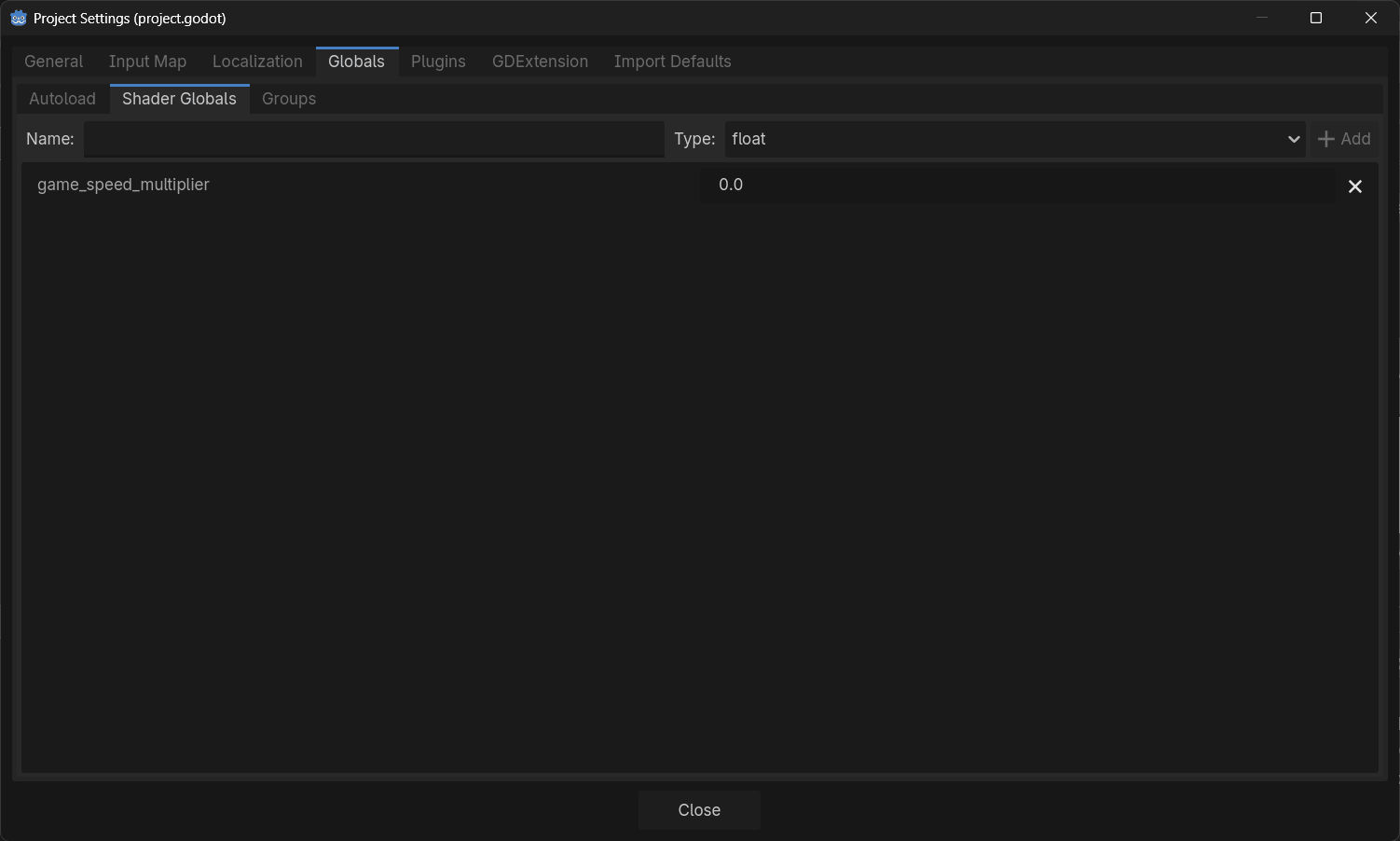
Godot 4 Syntax Note: When defining a variable that needs to be accessed and modified globally (like our game_speed_multiplier), you cannot use standard variables directly; you have to provide a global keyword upon variable declaration. You will also need to define this global variable in the Godot editor under Project > Project Settings > Shader Globals.
3. Assigning the Texture#
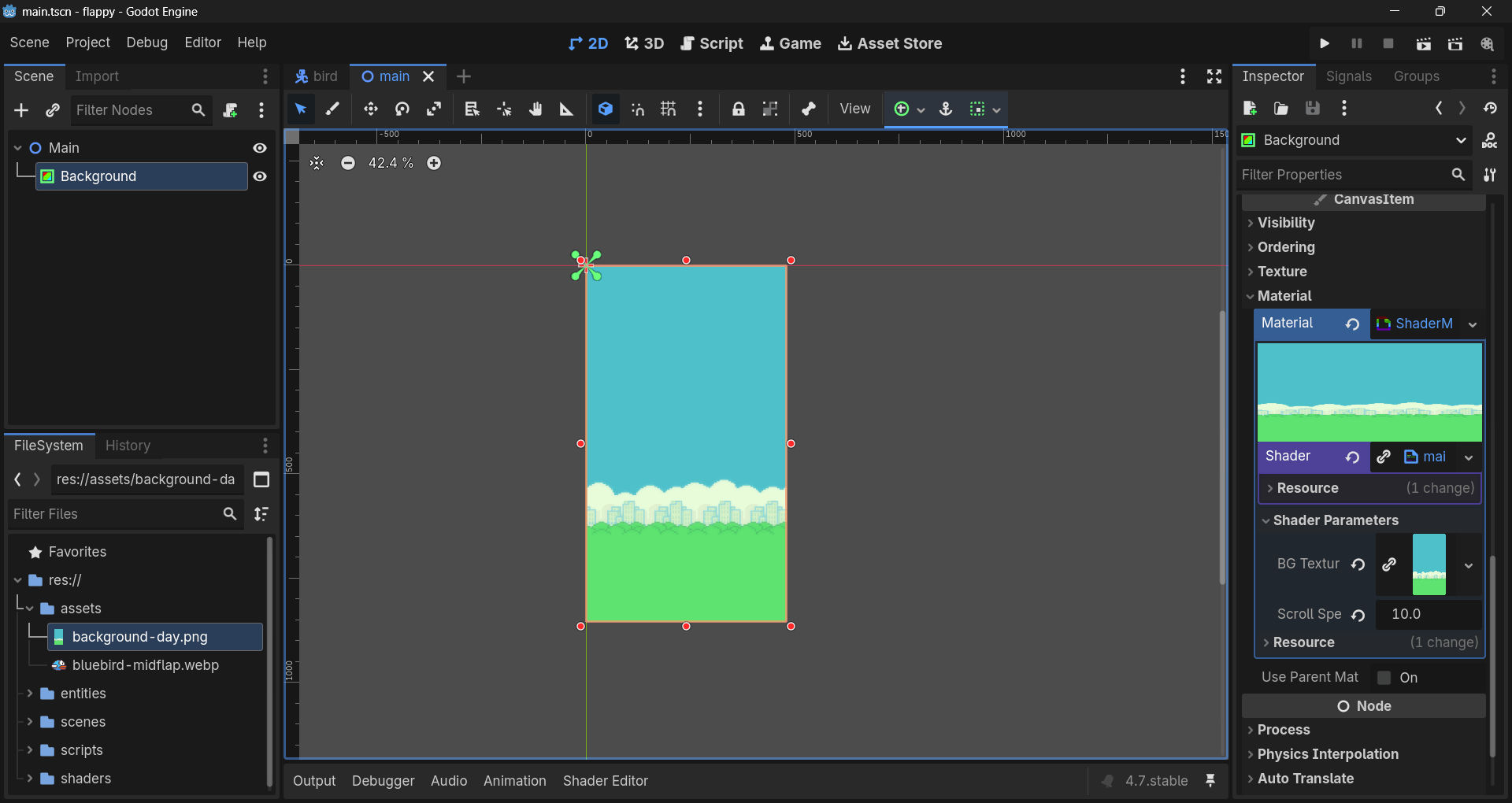
Now that the shader is compiled, you will see Bg Texture and Scroll Speed appear in the Inspector under Shader Parameters.
- Drag and drop your background image from the
res://Assets/folder into the Bg Texture slot. - Adjust the Scroll Speed to your liking (e.g.,
0.15).
Because we appended : repeat_enable to our sampler2D declaration in the shader, Godot automatically wraps the texture coordinates. As TIME increases, the image will continuously loop seamlessly from right to left!